Daily notes for iPhone, Mac and Apple Watch
Write it down before it’s gone.
Open Qurrent and start typing. Every thought lands on today, in the order you had it — easy to find later, and on your iPhone and Mac through your own iCloud.


- No accountNothing to sign up for. Open it and write.
- Your iCloud, not oursYour notes live in your own iCloud. We never see them.
- Nothing collectedNo analytics, no tracking, no ads.
- Calm by designNo badges, streaks or nagging. It never asks anything of you.
Capture
Open it and you’re already typing.
Qurrent opens straight to today, ready for you to type. Write the thought, press Return, and get on with your day.


Pull down from anywhere
On iPhone, pull down on any screen to jot something down, add it to the meeting you’re in, or jump to anything in the app.
One shortcut on the Mac
Press
⌃⌥Spacein any app, type your note, press Return and carry on.Wherever a thought turns up
Ask Siri, press the Action Button, share from another app, or tap a widget. Your watch works too.
The day
Your day, in the order it happened.
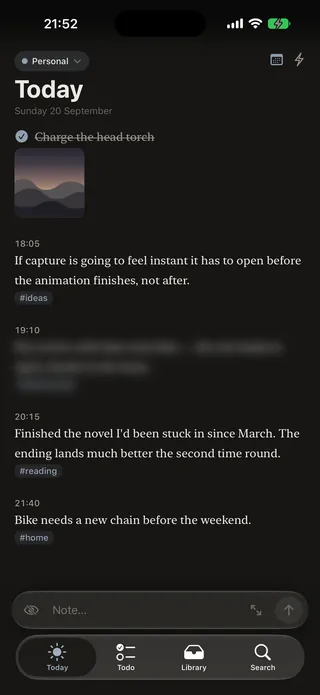
Notes build up through the day as you write them. A quick burst of thoughts stays together, and a time only appears when you’ve paused for a while.
Tags that stay out of the way
End a note with a
#tagor two and they tuck in neatly underneath, leaving your writing clean.A pleasure to read
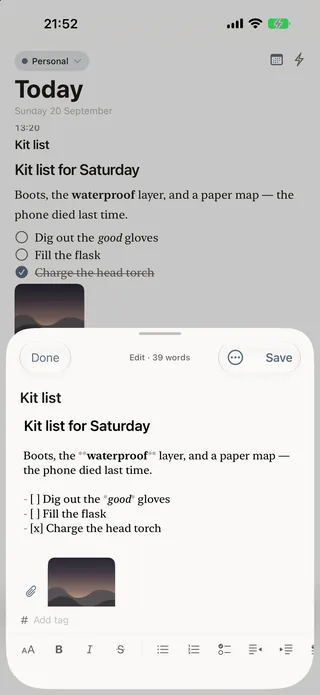
Your notes are set in a warm serif, with headings, checklists, pictures and files when you need them.
Pages for things that change
Keep a plan or a running list on a page of its own, and link to it from any note. Your day shows when you worked on it.
A proper dark mode
Warm and dim, and easy on the eyes when you’re writing late.
Todos
Todos that stay where you wrote them.
A todo is just a line in a note. Give it a date and it turns up on the day, then gets out of your way.


Dates as you type
Type
due:and pick a day. The date stays with the todo wherever it goes.What’s due, at the top of today
Anything due today sits at the top of the day. When nothing is, you won’t see it.
One reminder, and only one
Add a time and you’ll get a single notification. No repeats, no red badges.
No guilt for the ones you missed
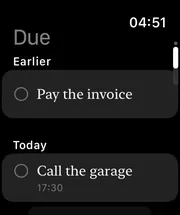
Things you didn’t get to move quietly under “Earlier”. Nothing turns red.
Find
Find anything, without filing anything.
Search everything you’ve written, including pages, tags and attachments. Then narrow it down with a tap.
- #home
- before 23 Sep
- after 1 Sep
- flagged
- pinned
- with a link
- with a picture

See exactly what you searched for
Every filter shows up as a tag you can tap away, so it’s always clear what you’re looking at.
Collections that keep themselves up to date
Save a search as a collection and new notes join it on their own. Nothing gets moved, and deleting one never touches your notes.
Find notes from anywhere
Your notes turn up in iPhone search, and you can link to any note from another app.
What it notices
It keeps track of things, so you don’t have to organise them.
Qurrent quietly works out what each note is about, right on your iPhone or Mac. It never changes a word you wrote, and your notes aren’t sent anywhere to do it.
-
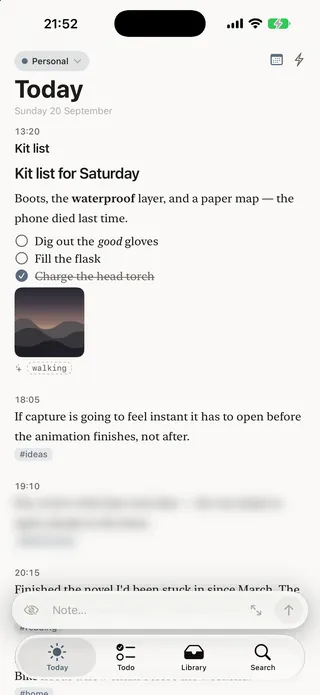
Always clear which is which
Topics Qurrent spots have a dashed outline; tags you added look solid. Topics stay hidden until you turn them on.
-
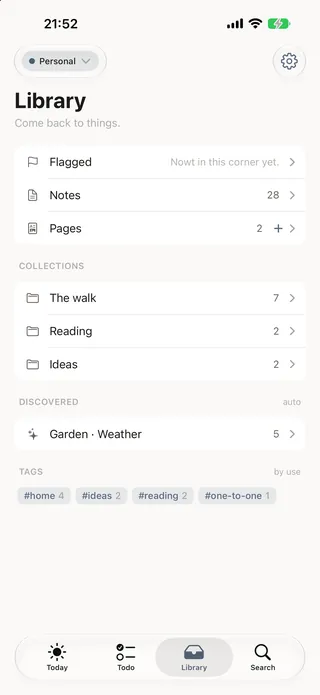
Collections it finds for you
When two topics keep turning up together, or a trip fills a week, Qurrent suggests a collection. Keep it or ignore it.
-
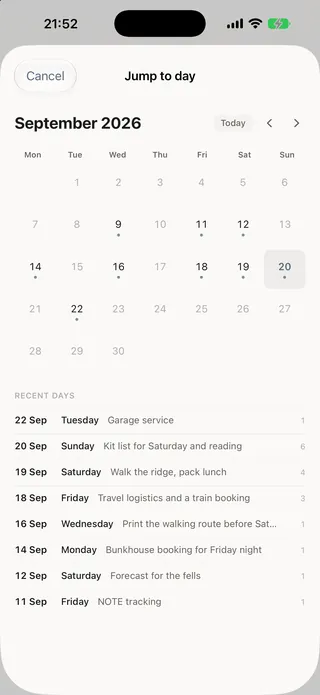
Look back and remember
Each day gets a short summary, so scrolling back through a month tells you what actually happened.


Your words, not a machine’s
It reuses the topics and tags you already have, rather than inventing new ones.
Find notes by what they’re about
Search finds a note by its topic as well as its words, so even the ones you never tagged turn up.
Suggestions, never decisions
It might suggest a tag, or the meeting a note belongs to. One tap to accept, and it never does it for you.
Tell it once
Remove a topic it got wrong and it won’t suggest it again.
Profiles and Focus
Work and personal apart, without telling it twice.
Keep work and personal notes completely separate, each with its own pages, tags and collections. Turn on a Focus and Qurrent can switch with you.
-
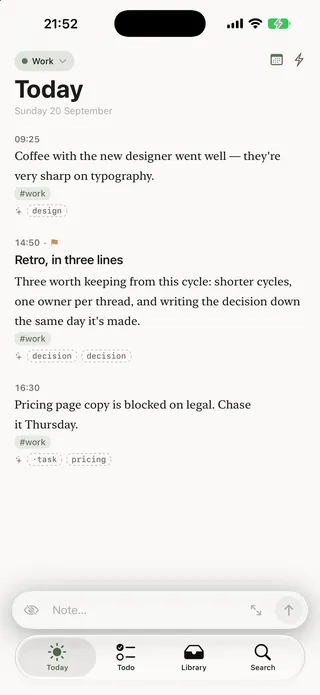
A colour for each
Every profile has its own accent colour, so you always know where you are.
-
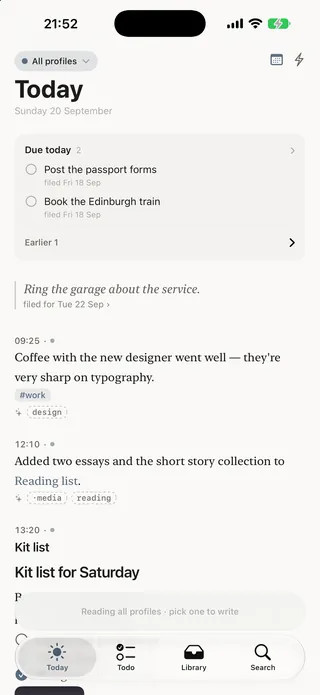
Everything at once
When you want the whole picture, see every profile together in one view.
-
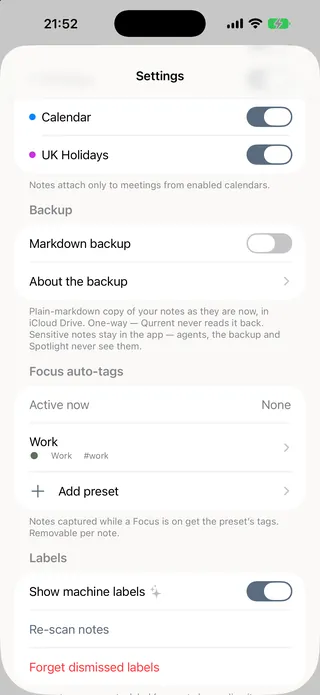
Let Focus do the switching
Turn on your Work Focus and new notes get tagged #work. Qurrent can move you into your Work profile until you’re done, too.


Only there if you want it
If one profile is all you need, you’ll never see any of this.
Your tags come first
Tags from a Focus are added alongside yours, never instead of them.
Privacy
Private from the start, not buried in settings.
Your notes are kept in your own iCloud and nowhere else. There’s no account to lose and no Qurrent server to break into.

No account, ever
Nothing to sign up for, and nobody in the middle.
Nothing collected
No analytics and no tracking. The app only ever talks to iCloud.
Suggestions that stay on your device
Tag suggestions and daily summaries are worked out on your iPhone or Mac, never in the cloud.
Notes for your eyes only
End a note with
#privateand it stays blurred on screen, and out of Siri, widgets, iPhone search and backups.Only you can delete
No shortcut, Siri request or assistant can delete your notes. Only you can, in the app.
Your notes, as plain files
Turn on backup and every day is saved as a plain text file in your iCloud Drive, readable anywhere.
Apple Watch
On your wrist, too.
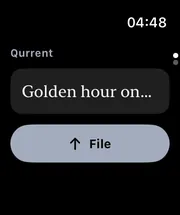
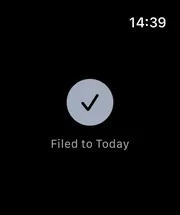
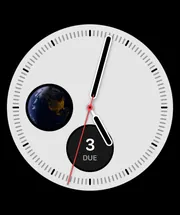
Jot something down without reaching for your phone, with your recent tags a tap away. It lands on today with everything else, and your watch face can show what’s due.
Mac
And at your desk.
A proper Mac app, not a phone app stretched wide, with a quick note one shortcut away from whatever you’re doing.

-
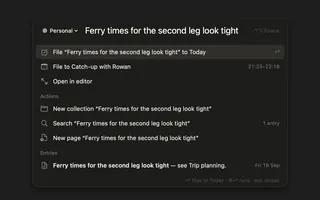
Jot from any app
Press
⌃⌥Spaceor click the menu bar icon, write your note, and go straight back to what you were doing. -
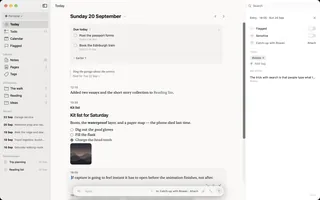
Edit right where it is
Click a note to change it in place, or open it in a window of its own.
-
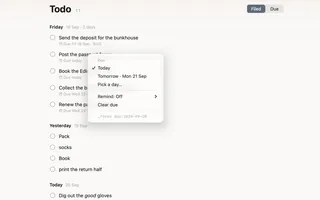
Every todo in one list
See them all together, in the order you wrote them or by when they’re due.


Also in there
The rest of it, briefly.
Small things that make a difference once you’re using it every day.
Save from any app
Share links, text, pictures and files straight into Qurrent.
Widgets and buttons
A widget for your Home or Lock Screen, and a New note button for Control Centre or the Action Button.
Pictures and files
Add them to any note or page. Paste a picture in and it’s attached, not dumped in as text.
Tidy up in one go
Select a handful of notes and tag, flag, move or delete them together, with one undo.
Flag what matters
Flag anything and find it all in one list.
Ticked by mistake?
Undo is right there for a few seconds after you tick something off.
Reminders you can act on
Mark it done, or push it back an hour or to tomorrow, straight from the notification.
Related notes
On the Mac, see other notes about the same thing beside the one you’re reading.
Meeting notes, ready to share
On the Mac, copy a meeting’s notes as a tidy summary, ready to paste.
For tinkerers
A command-line tool, and optional access for an AI assistant on your Mac. Both can read and add notes; neither can delete them.
Starts with your Mac
Qurrent can open at login and live in the menu bar, if you’d like it to.
Nothing gets lost
If a note can’t be saved straight away, it’s kept safe and saved the next time Qurrent opens.
Tags that tidy themselves
Tags you’ve stopped using quietly disappear, so the list never fills up with old ones.
On purpose
What it deliberately doesn’t do.
Keeping it simple is the point. If you want a second brain, there are plenty to choose from. This is for getting things down.
Not a knowledge base
No graphs, no backlinks, no folders to organise.
Not a task manager
Todos can have a date, and that’s it. No projects, priorities or repeats.
Not a journal with prompts
It never asks you anything.
Nothing to pull you back
No badges, no streaks, no tours.
No web or iPad app
Just iPhone, Mac and Apple Watch.
No cloud AI
Anything it works out, it works out on your device.

Note…
Qurrent will be free on TestFlight for iPhone, Mac and Apple Watch. You’ll need iOS 26, macOS 26 or watchOS 26.